> For the complete documentation index, see [llms.txt](https://mykolapetrovych.gitbook.io/argus-wordpress-plugin/llms.txt). Markdown versions of documentation pages are available by appending `.md` to page URLs; this page is available as [Markdown](https://mykolapetrovych.gitbook.io/argus-wordpress-plugin/installation-guide/twitch/plugin-authorization.md).
# Twitch API Setup
To set up the plugin correctly, you must create a Twitch application for your website and give it the correct settings. For beginning authorize in your Twitch profile on the Twitch developer console [dev.twitch.tv](https://dev.twitch.tv/console)
Go to an applications page [dev.twitch.tv/console/apps](https://dev.twitch.tv/console/apps) and press a ***Register Your Application*** button in the top right corner.
You will be asked to assign a name and choose one that is comfortable to remember that this setup is for the website.
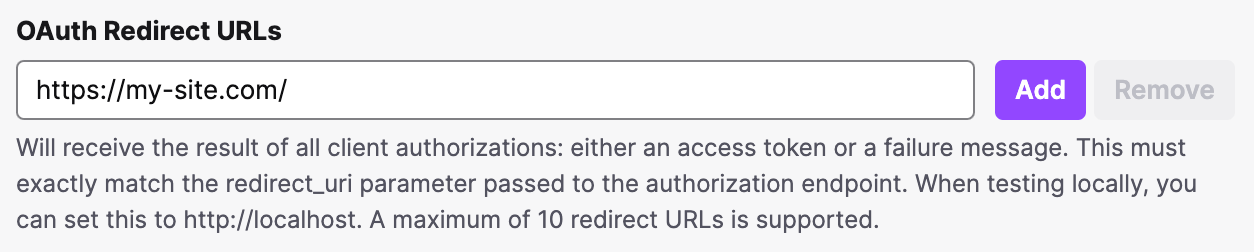
In the ***OAuth Redirect URLs*** section, add your domain name in the format `https://my-site.com/`
Also, select the category ***Website Integration***.